We’ve added a new tool to streamline the grading creation workflow: Auto Create Grading Strings. This tool automates the generation of multiple grading strings in a single, efficient operation.
The Auto Create Grading Strings augments the current Create Grading command by offering robust batch processing, sequential naming, and multiple initial elevation controls.
Access and Core Functionality
The new feature is accessible via command line entry (ARDUV7AJEBBATCHGRADINGCREATE) or from the Toolspace (right click on Grading Strings).
When you start the command a multi tabbed form displays to guide you through the process of selecting source geometry, defining naming conventions, setting design parameters, establishing initial grading elevations and configuring model integration.
Let’s take a walk through the functionality.
First, select your polylines to use as Grading Strings. Here you can pick in the drawing as well as add by layer.

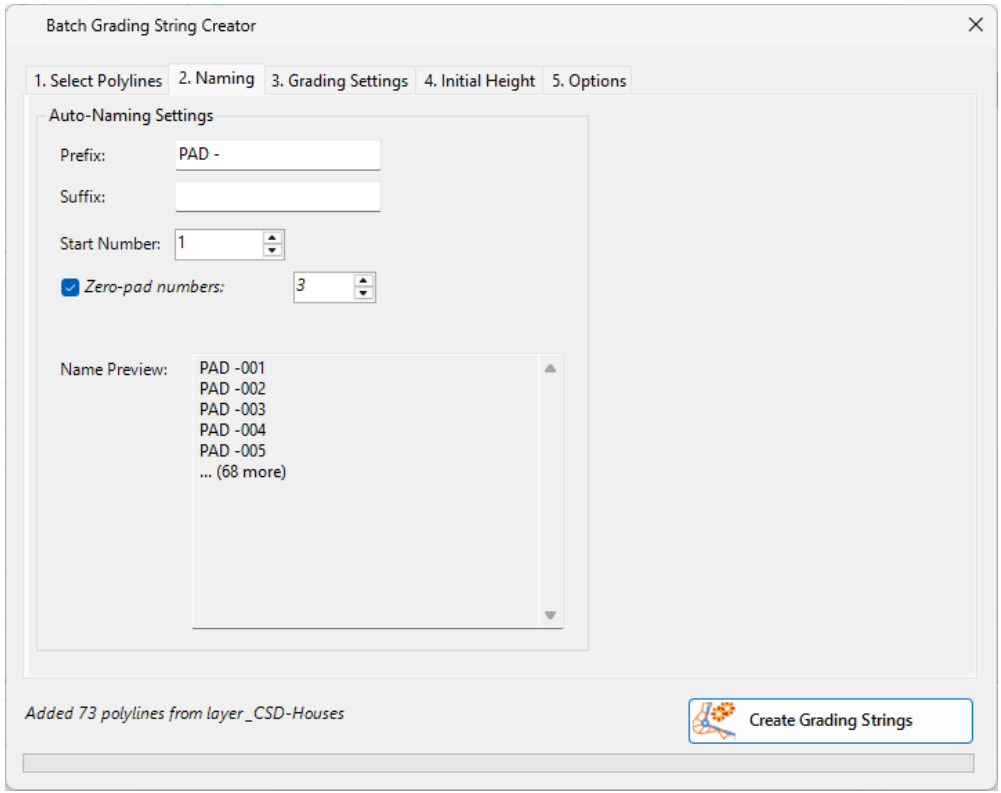
Establish the naming convention for the grading strings. This includes prefix, suffix and auto number incrementing. There is a preview to check for duplicate names
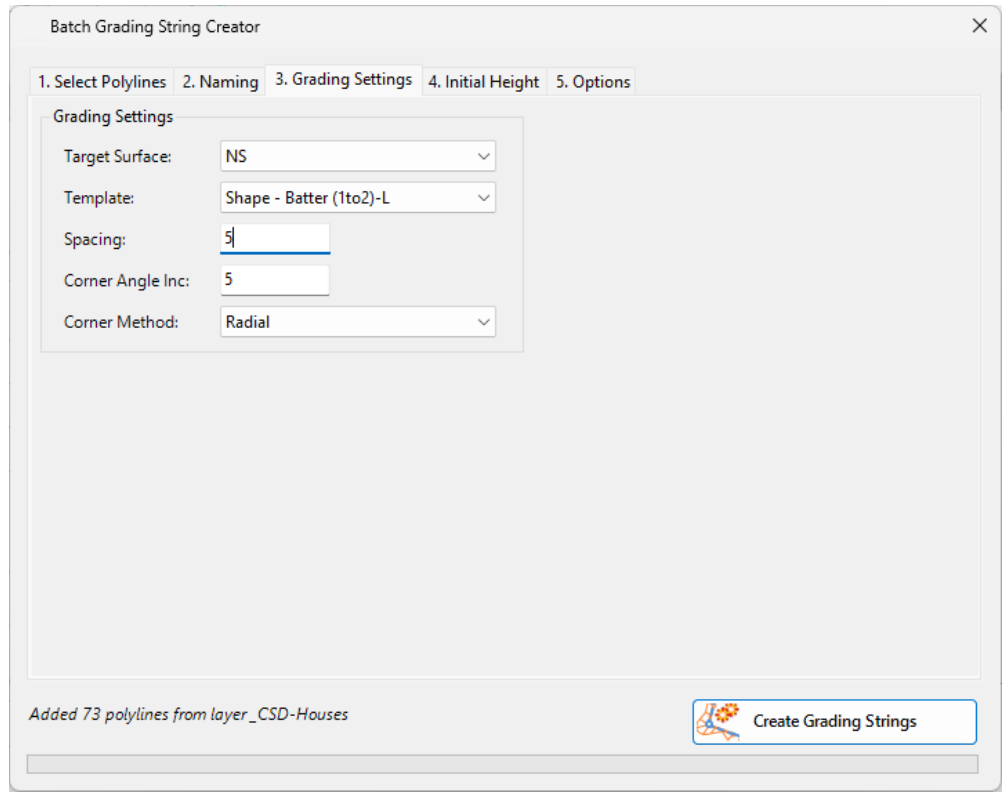
As per the current Grading String form, you then set up the base surface, template, spacings and batter slopes to apply.
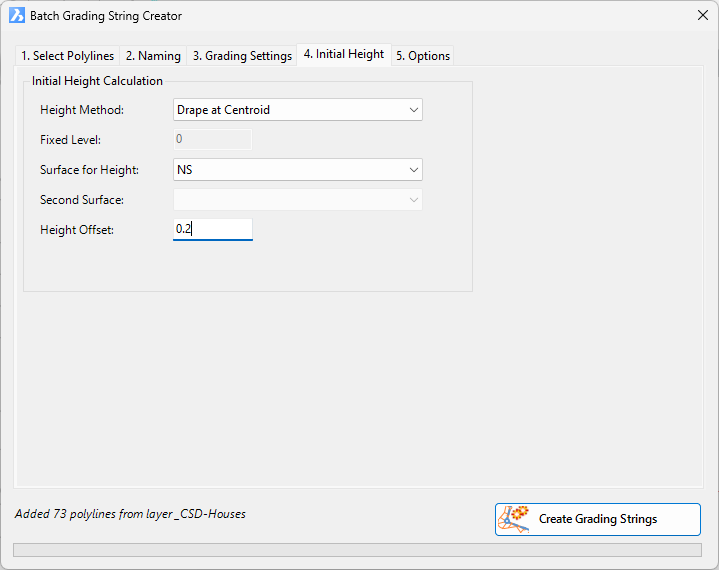
The Initial Height tab lets you determine the method for setting the initial grading elevations. As well as Fixed Level, which is the only option in Create Grading, you can set the elevation based on the surface information found for the polyline, along with an additional height change.
Lastly, set the options for surface and model creation, then click Create Gradings.

All grading strings are created! Now you can review and edit them as needed for your design.
Grading String Management
If you are making LOTS of grading strings, this will impact on rebuild speed if all the grading strings are set to dynamically update. When you edit a polyline that controls a grading string, we sweep the drawing and update all grading strings.
You can control which Grading Strings rebuild by running the Grading String Manager. The command is available from the CSD Toolspace under the Grading Strings heading.
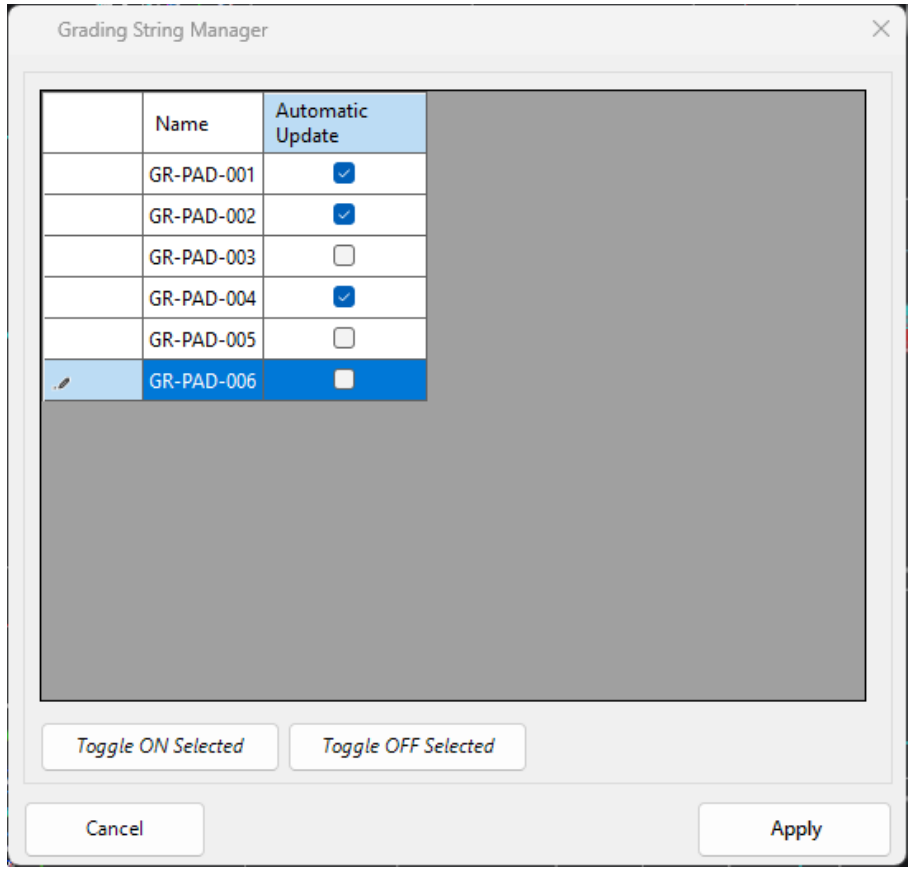
Just tick off the grading strings you don’t need to automatically recalculate. You can rebuild these gradings via the Create/Edit Grading command or by editing the vertical design in the Vertical Grading Editor. You can also update them by running a Thread.
We are pleased to announce the release of Stringer Topo V25.00. This version includes new features and improvements that aim to streamline your surveys within the CAD environment. Stringer Topo V25.00 is available on the following platforms: AutoCAD 2019 to AutoCAD 2025 BricsCAD V22 to BricsCAD V24 Civil 3D 2019 to Civil 3D 2025 Traverse […]

The Stringer Topo V25.00 release will enable access to a Network version. Our adoption of a new Licensing system (QLM) allows us to reintroduce our popular Network version, which has been temporarily unavailable. For Stringer Topo customers who currently have Network licenses on software maintenance, you will be issued new Stringer Topo V25.00 Network license(s) […]

“Civil Site Design: A Year in Review and a Glimpse into the Future,” recording is now available. We have dived into the transformative developments of the past year and shared some plans for the upcoming version V25. This session was led by one of our software developers, Andrew Banson, showcased the major enhancements and new […]

In conjunction with our partners Civil Survey Solutions, we are excited to announce the following upcoming training courses for our products Civil Site Design and Stringer Topo. The courses are delivered by our experts and the training team at Civil Survey Solutions. As an Authorised Autodesk Training Center and Application Developer, you can trust that […]