We know that every moment you spend searching through the Ribbon or navigating the Stringer Toolspace is time you aren’t finalising your survey, and that for power users, the keyboard is always faster than the mouse.
That’s why we are excited to announce a major productivity update for Stringer Topo users.
Less Clicking, More Surveying
We have added nearly 40 new keyboard shortcuts designed specifically to help you execute the most common Stringer commands with lightning speed.
Gone are the days of hunting for icons. In a very short period, you’ll find yourself typing directly into the command line to undertake a multitude of your daily tasks and bypassing the other interface options.
How the New Shortcuts Work
To keep things intuitive, we have designed a simple logic for these new keyboard shortcuts:
- The “S” Prefix: All new shortcuts start with the letter S.
- Simple Suffixes: The “S” is followed (typically) by two or three letters that logically describe the command.
Check out this Stringer Keyboard Shortcuts document to familiarise yourself with the new workflow. We recommend printing it out and keeping it next to your monitor for the first few days – before you know it, muscle memory will take over!
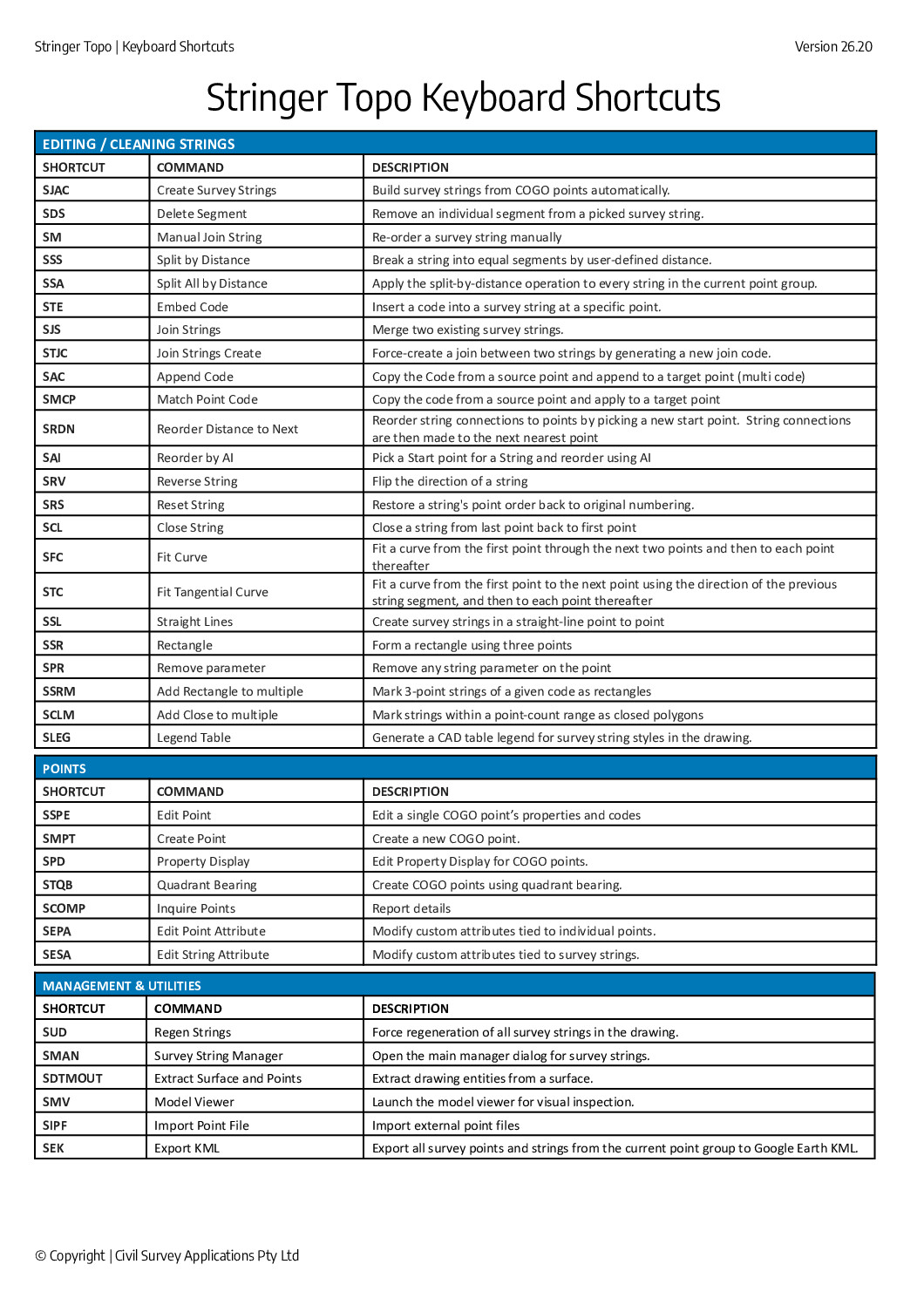
Whilst each of these already has a commandline call, the command names are typically long and difficult to recall. Thus, the keyboard shortcuts.
Power User Tip: Create Your Own Shortcuts
While we have covered the essentials, every surveyor works a little differently. Did you know you have the power to create command aliases for any command in the software?
If you have a specific command that we haven’t covered, you don’t have to wait for an update.
Type ALIASEDIT at the command line.
This will open the Alias Editor.
From here, you can assign your own custom keystrokes to “shortcut” your most-used commands.
Note: This writes to a file. Just make sure you have permissions to read and write to the file, otherwise you may see an error message display.
We Want Your Input
Is there a command you use daily that you wish had a dedicated shortcut? Let us know what commands you want to see accessible via the keyboard, and we will look into adding them in future updates.
Happy surveying!
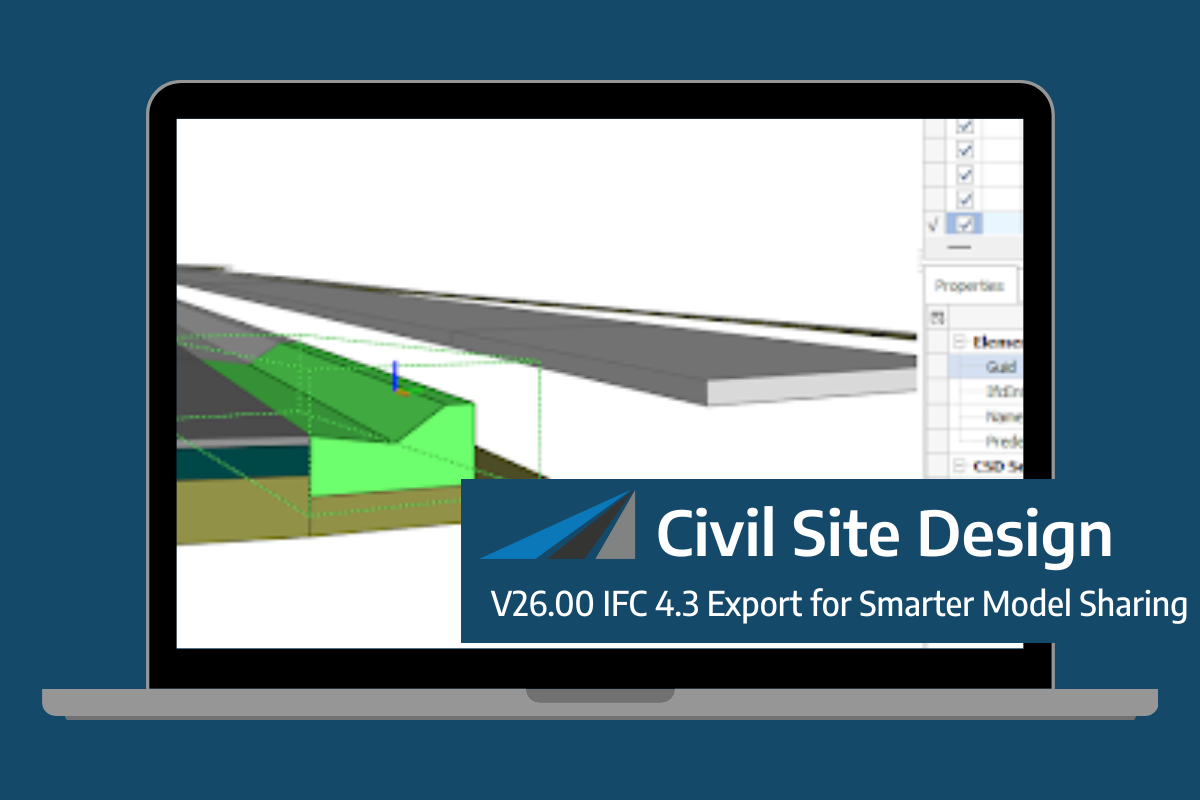
Civil Site Design/Corridor EZ V26 introduces support for IFC 4.3 export, giving users a powerful new way to share detailed 3D models with full classification and geometry data. This enhancement allows designers to export corridor models, road elements, and subgrade components as fully structured, BIM-ready files compatible with a wide range of IFC viewers […]
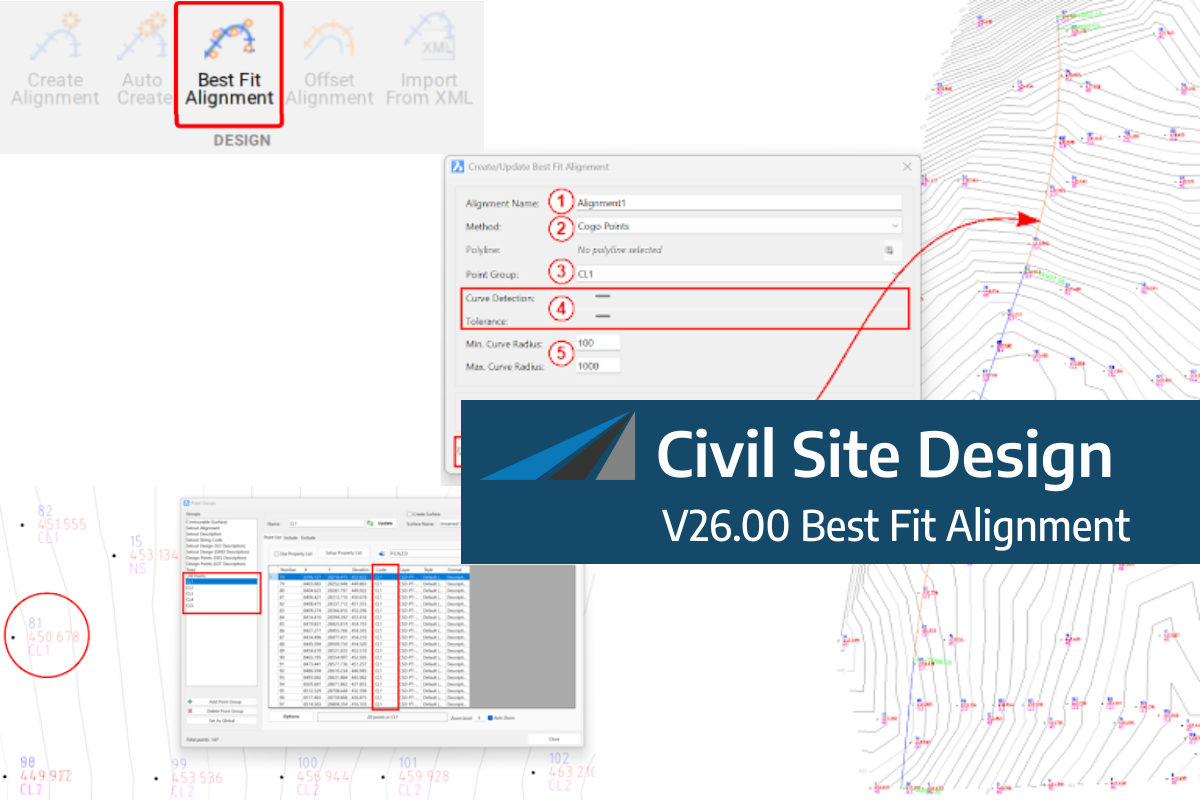
A new feature of Civil Site Design V26 is the Best Fit Alignment command. This command is available to AutoCAD and BricsCAD users and allows you to create an alignment based on Cogo Point or polyline data. When the command is run, the Best Fit algorithm analyses the Cogo Points in the specified Point […]

One of the exciting new features in the Civil Site Design V26 and Stringer Topo V26 release is the Surface from LAS command. Often LiDAR and point cloud data is saved as a LAS file, which previously required interpreting in another software prior to being imported to create a surface. This new command allows you […]
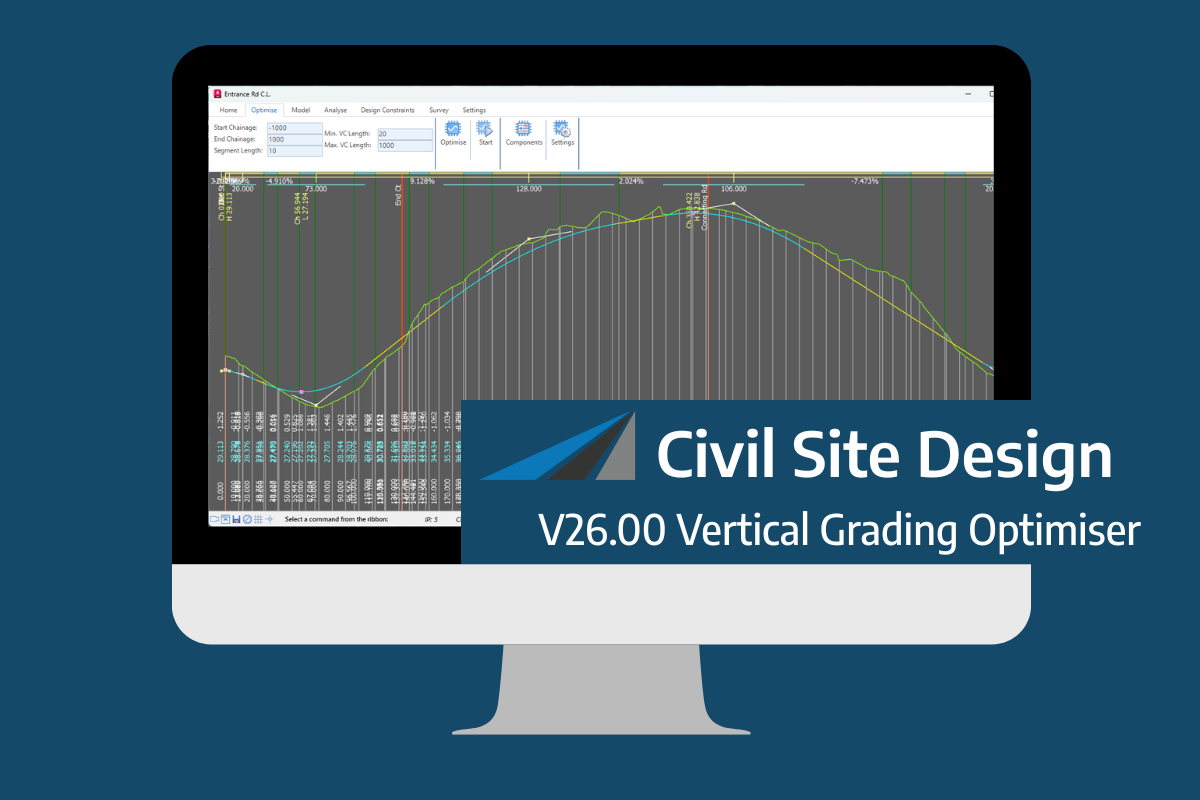
An exciting new tool in Civil Site Design/Corridor EZ v26 is the Vertical Grading Optimizer which can create vertical design profiles based on the parameters you set. Previously, the vertical best fit design profile was based on matching closely to the terrain (within preset cut/fill depths) and adding vertical curves. Mostly, you would remove these […]