You may love project storage/pack mode, have a love/hate relationship with it, or not be sure what it is all about.
What is Project Storage (Pack Mode)?
The idea of Project Storage (Pack Mode) in Civil Site Design/Stringer is to allow you to save everything inside your single drawing (.dwg) file, instead of maintaining a connection to a separate ‘Data’ folder all the time.
We highly recommend enabling Project Storage (Pack Mode) if you are working with cloud storage, or finding speed issues working through a VPN or across a network. With Project Storage (Pack Mode), only the single .dwg file needs to be saved. The ‘Data’ folder becomes transactional and is stored in your local temp folder – only used while you have the drawing open and are working on Civil Site Design/Stringer.
Packing by Default
By default, we set Project Storage (Pack Mode) OFF for new projects for new users. From V26.20, there is now a configuration file in the Settings folder to default Project Storage (Pack Mode) toggle ON, rather than OFF for new Projects.
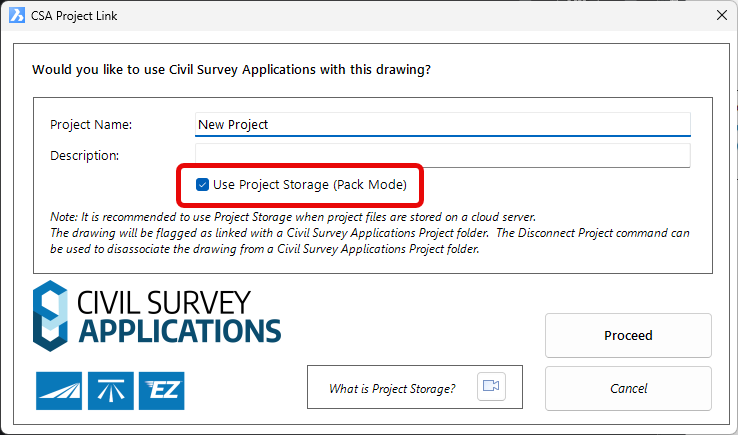
We now create a file in the Settings folder called NewCSAProjectDefaults.ini. Open that file and you will see a settings entry in there:
UsePackModeDefault=False
If you manually edit this by changing the word False to True and save the file, then next time you start a new project the default to Project Storage (Pack Mode) will be on.
UsePackModeDefault=True
Drawing Templates and Project Storage (Pack Mode)
Since we store the information about Project Storage (Pack Mode) inside the drawing file, there is nothing stopping you from setting it up in your drawing template. If you do this, know a couple of things:
- The Settings that are normally copied out of the settings folder and added to your local data folder will now already be part of the drawing file
- We store a record of the previous use of each drawing (the ‘Data Revision’ controls). This works by assigning a unique identifier to the drawing and tracking Data folders in your temp folder flagged with the same identifier.
You can toggle Project Storage (Pack Mode) on and off, and remove the unique data identifier (or create a new one) for the drawing to remove/reset the Data Revision history. This is all achieved via the Project Storage command:
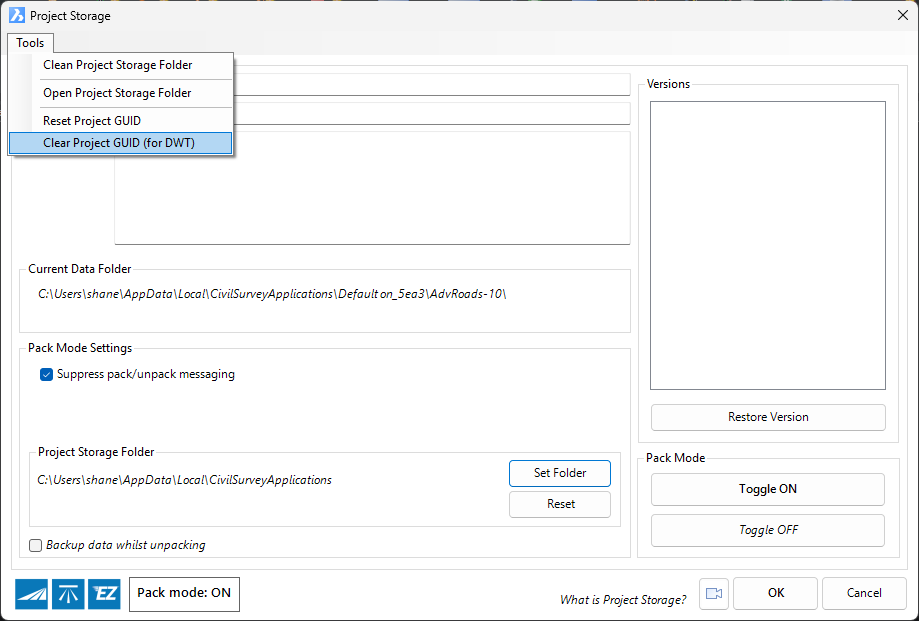
From the Tools menu at the top, you can open to your data folder as well as reset (or clear for drawing templates) your unique data identifier. This clears out the Versions section from showing a history of saved data.
On the bottom right are the Toggle ON and Toggle OFF buttons for whether or not to pack the data inside the drawing.
Removing All Knowledge of Civil Site Design/Stringer
You may have (accidentally) run Civil Site Design or Stringer on a drawing and saved it. Whether Project Storage (Pack Mode) is on or off, this does store a record that there should be a Data folder somewhere for the drawing.
If you keep getting a message about a missing data folder, or you are absolutely sure that the drawing should have nothing to do with Civil Site Design/Stringer then have a look in the General Ribbon tab for a button called Disassociate Project. This will remove all record of any connection to Civil Site Design or Stringer.
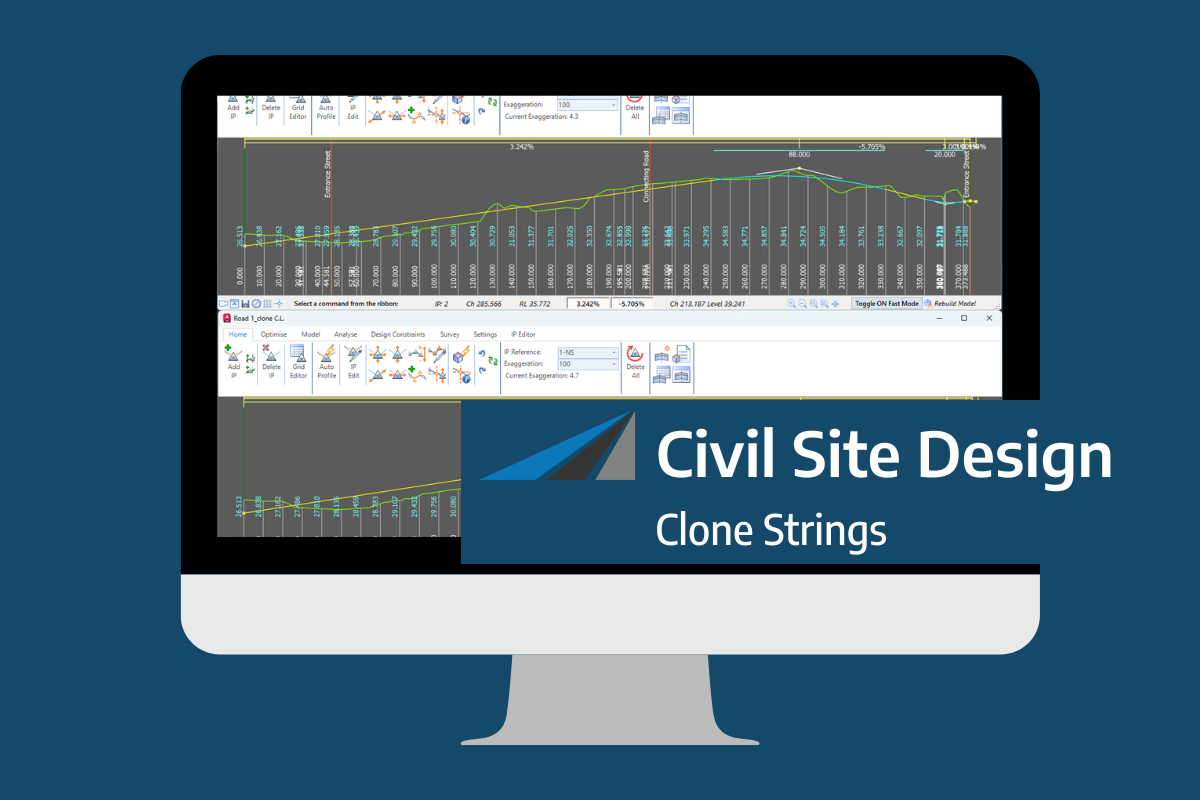
In the Civil Site Design v26 release for AutoCAD and BricsCAD, a new Clone String command has been added. This command allows users to create a clone of an existing string as a profile string including the alignment and vertical profile. This command turns what was a multi-step process into a one step process. You […]
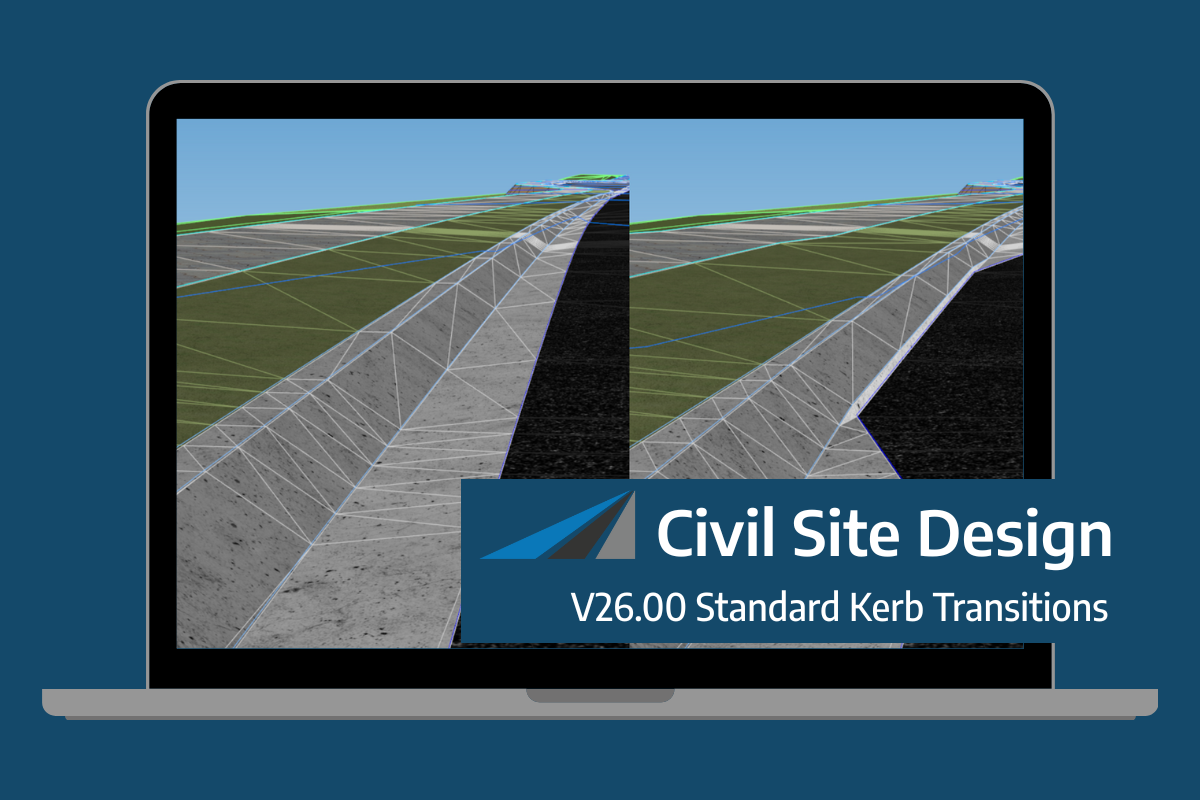
Civil Site Design/Corridor EZ v26 delivers a major upgrade to its Custom Variations functionality with the introduction of Standard Kerb Transitions. Since v25, Custom Variations have been a core feature of Civil Site Design/Corridor EZ, allowing users to apply conditional logic and geometry overrides to cross sections at specified chainages. With v26, this functionality is […]
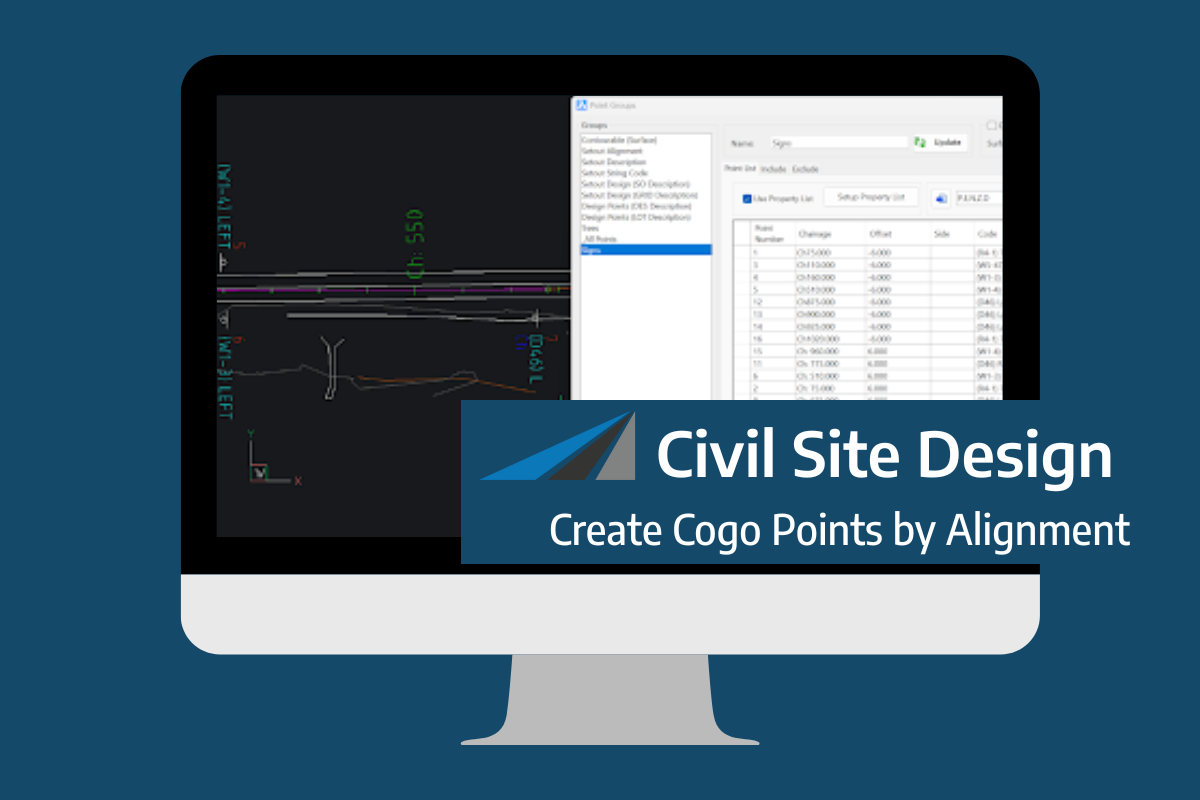
Civil Site Design V26 introduces the new command Import Cogo Point File (by Alignment). This tool allows you to import a file that specifies chainage and offset along an alignment for points to be created. The command is available for Civil Site Design and Stringer across all base platforms. The command can be found at […]