We are on the development and documentation journey to enabling multi language support across our applications. With the release of Civil Site Design and Stringer V26.2, we’ve taken the next steps in delivering multilingual versions of our applications to you.
The development team have introduced a language conversion process that directly translates text displayed on forms. Essentially, when the program is started, or you use the new Language Settings tool to switch language, we update the text on forms to use translated text entries. Translation is managed via a simple text file containing two columns of information: the source (English) text and the translated (localised) text.
Here is an example of translation to Hindi:

Right now, we are working on language support across three fronts:
- Commencing human translation. This is supported with the CSA Translation Editor application.
- Continuing development to support more text in forms. Currently, we auto translate static text, tooltips and form headings. We will continue to work on supporting more form input controls such as: message boxes, picklist inputs and dynamic text.
- Translating the help system. Right now, we are reviewing the help system to determine the best approach to language localisation
Our long-term goal is to include language selection at the time of installation for the user to select their preferred language. Short term, we have implemented a Switch Language command in Civil Site Design and Stringer for you to switch out the language displayed in the software.
Want to test out the Translator?
As part of the V26.20 release, we have included some machine language translation files. We’d welcome your review and feedback!
If you want to test out some language switches, we’ve created the following languages for you to try:
- Arabic
- French
- Indian (Hindi)
- German
- Italian
- Romanian
- Spanish
To apply a language switch, open Civil Site Design or Stringer look for the command Language Settings. You will find it in the Toolspace (right click on the drawing name) and also in the Ribbon (check out the General ribbon tab).
When you run the command, you will see options to turn translation on/off, manage how translation is applied and pick a language translation file to apply.
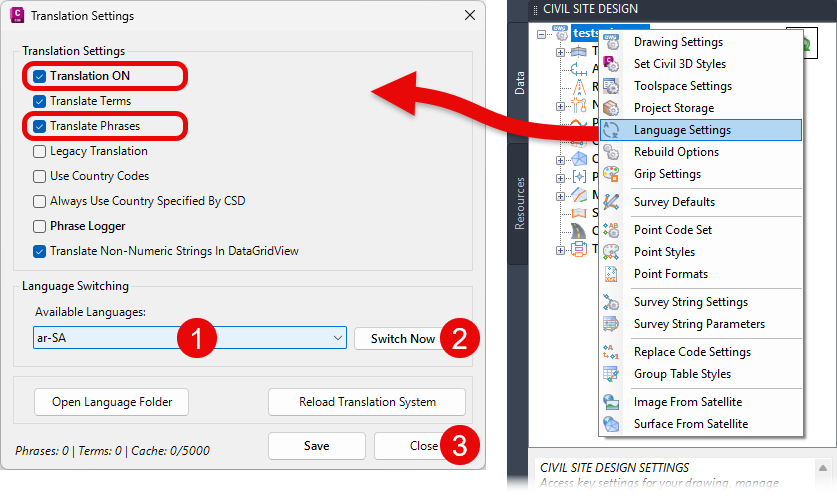
To apply a translation, ensure that Translation ON and Translated Phrases are ticked, then do the following:
- Under Available Language, pick a language file – these are named using the ISO 693 Language Codes.
- Click on the Switch Now button. You will see that the current form will translate
- Click on ‘Close’ and review. This will be the default language when you close and restart
You should see changes right away; however, we recommend shutting down and restarting the application to see full translation.
If you want to return to the defaults, then go back to this form and set the Available Language to Default and click Switch Now. For no language translation, until the toggle Translation ON and tick on Legacy Translation.
Translation Editor
To help support the translation and language localisation process, we’ve created a CSA Translator Editor application for translators. This application operates independently of Civil Site Design, and Stringer streamlines the process of translating all text phrases displayed within the software’s forms, providing translators with a powerful, efficient environment to manage, translate, and finalise new language packs.
If you are keen to be involved in translation, get in contact with us!
We are pleased to announce the release of Stringer Topo V25.00. This version includes new features and improvements that aim to streamline your surveys within the CAD environment. Stringer Topo V25.00 is available on the following platforms: AutoCAD 2019 to AutoCAD 2025 BricsCAD V22 to BricsCAD V24 Civil 3D 2019 to Civil 3D 2025 Traverse […]
The Stringer Topo V25.00 release will enable access to a Network version. Our adoption of a new Licensing system (QLM) allows us to reintroduce our popular Network version, which has been temporarily unavailable. For Stringer Topo customers who currently have Network licenses on software maintenance, you will be issued new Stringer Topo V25.00 Network license(s) […]
Modern survey equipment now stores more identifiers for a point than just a single integer value. Users can opt to identify the point using an alpha-numeric input. An alpha-numeric point is made up of a combination of alpha characters (eg : A, B, C) and numeric values (1, 2, 3, Etc). A common application of […]