The latest update to Stringer Topo enhances the Survey Defaults form by including export and import options to share between drawings/computers in your organisation.
What does the Survey Defaults form do?
The Survey Defaults form provides you with a centralised location for key settings controls: coordinate systems, point styles, code sets, survey line settings and default point group.
Once set, this establishes your drawing setup for input and output behaviour.
The Addition of Import and Export: Quick Settings Exchange
The dedicated Import and Export tools in the Survey Defaults form provides a simple method for exchanging your key settings (Point Code Set, Survey String Settings and Point Groups) between drawings via a single file (.strx).
In the past, sharing these key settings files across the organisation meant manually copying and pasting files between computers, and there was no way to inherit these for in-progress drawings.
To share the Stringer settings, all you need to do is:
- Open a drawing containing the Sringer Settings you have established and wish to share
- Open Survey Defaults and click on Export
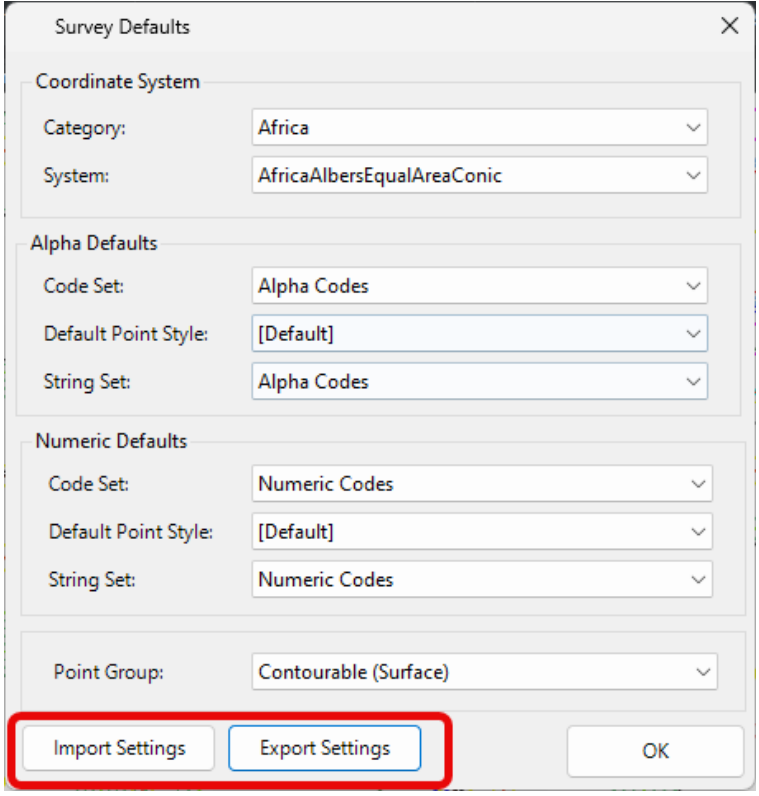
- Place the output file on your network or otherwise share it with a colleague in a drawing or on a different computer that doesn’t include the preferred settings
- In the receiving drawing, open the Survey Defaults form, click on Import Settings and select the created .strx file.
The point groups, point code sets and survey string settings files will be copied across to the receiving drawing, ready to be set as default and used.
Turning the Settings from Local to Global
These settings are added only to your current drawing. To set these as the defaults for all future drawings on your computer, you need to:
- Start the Point Code Sets command and click the button Set as Global
- Start the Survey String Settings command and click the button Set as Global
- Start the Point Groups command and click the button Set as Global
Civil Site Design/Corridor EZ V26 introduces support for IFC 4.3 export, giving users a powerful new way to share detailed 3D models with full classification and geometry data. This enhancement allows designers to export corridor models, road elements, and subgrade components as fully structured, BIM-ready files compatible with a wide range of IFC viewers […]
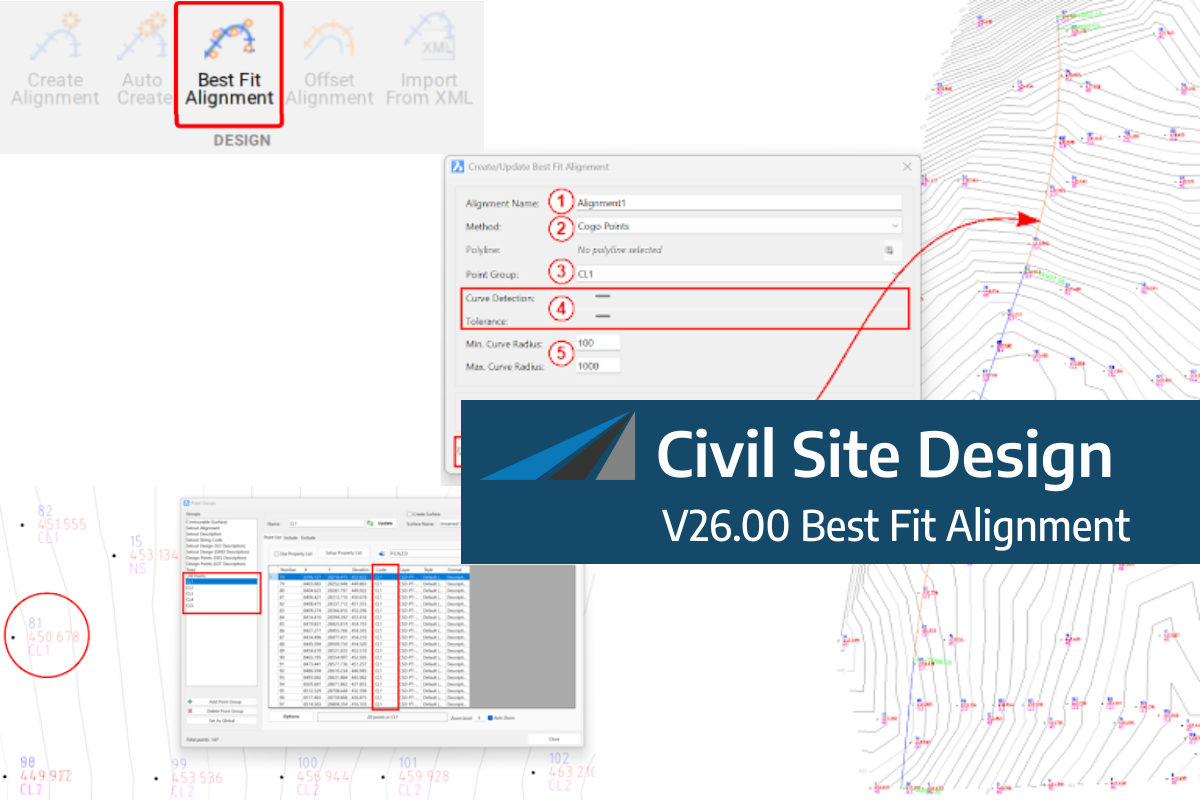
A new feature of Civil Site Design V26 is the Best Fit Alignment command. This command is available to AutoCAD and BricsCAD users and allows you to create an alignment based on Cogo Point or polyline data. When the command is run, the Best Fit algorithm analyses the Cogo Points in the specified Point […]

One of the exciting new features in the Civil Site Design V26 and Stringer Topo V26 release is the Surface from LAS command. Often LiDAR and point cloud data is saved as a LAS file, which previously required interpreting in another software prior to being imported to create a surface. This new command allows you […]
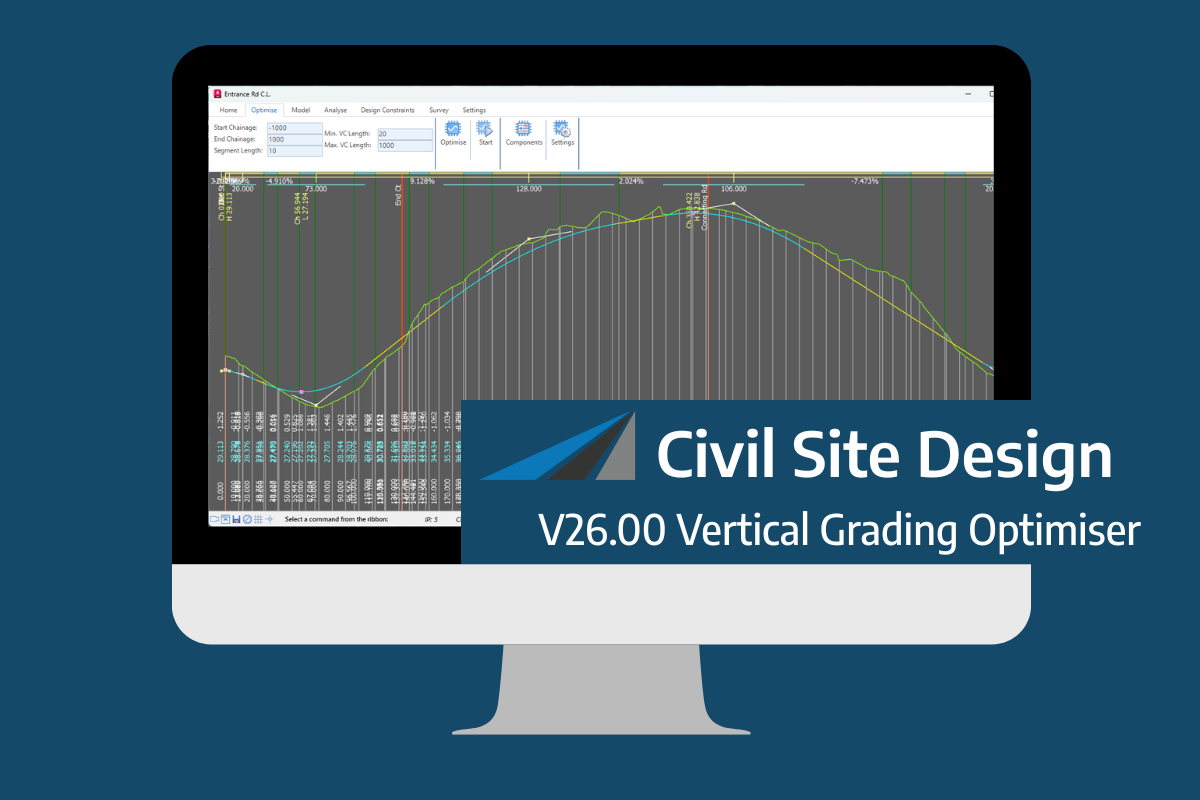
An exciting new tool in Civil Site Design/Corridor EZ v26 is the Vertical Grading Optimizer which can create vertical design profiles based on the parameters you set. Previously, the vertical best fit design profile was based on matching closely to the terrain (within preset cut/fill depths) and adding vertical curves. Mostly, you would remove these […]