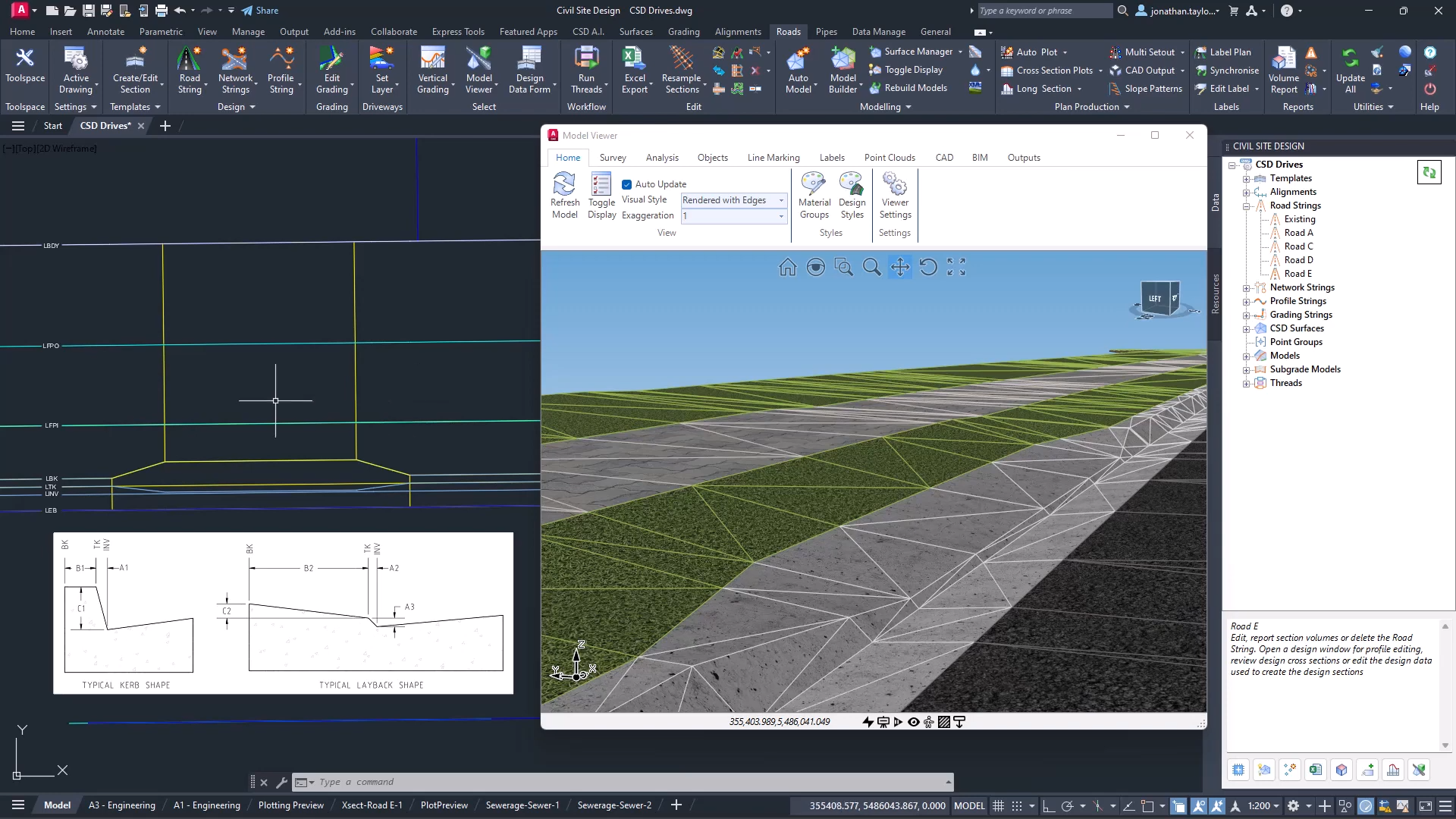
We’ve added a new tool to streamline the grading creation workflow: Auto Create Grading Strings. This tool automates the generation of multiple grading strings in a single, efficient operation.
The Auto Create Grading Strings augments the current Create Grading command by offering robust batch processing, sequential naming, and multiple initial elevation controls.
Access and Core Functionality
The new feature is accessible via command line entry (ARDUV7AJEBBATCHGRADINGCREATE) or from the Toolspace (right click on Grading Strings).
When you start the command a multi tabbed form displays to guide you through the process of selecting source geometry, defining naming conventions, setting design parameters, establishing initial grading elevations and configuring model integration.
Let’s take a walk through the functionality.
First, select your polylines to use as Grading Strings. Here you can pick in the drawing as well as add by layer.

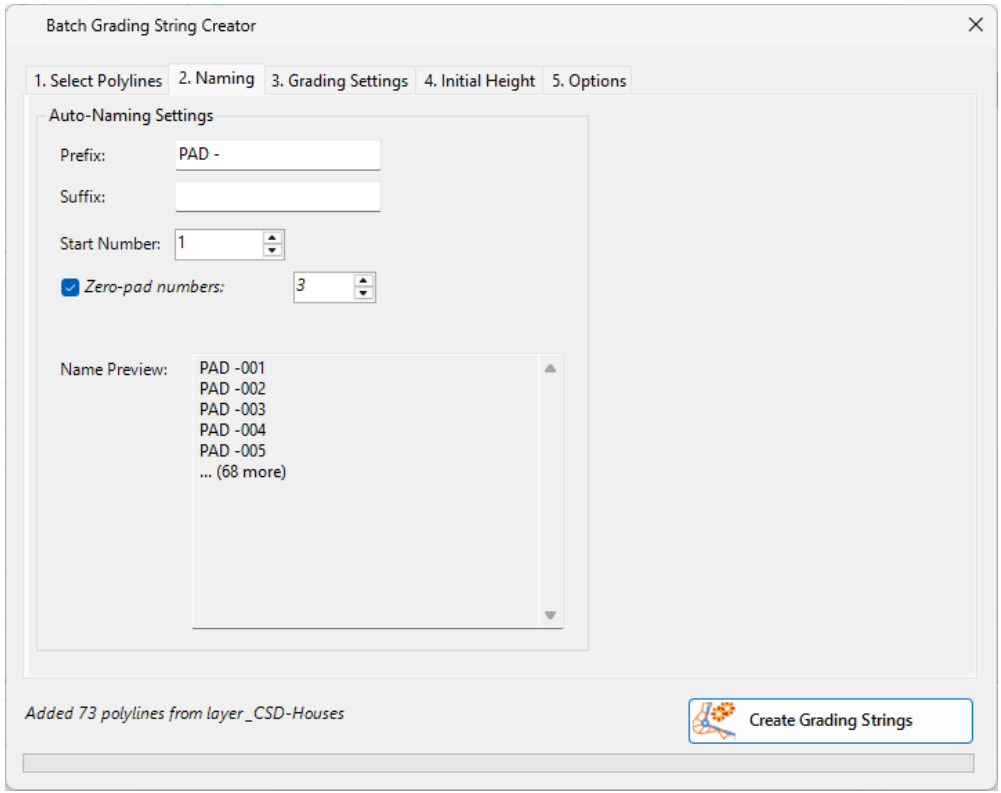
Establish the naming convention for the grading strings. This includes prefix, suffix and auto number incrementing. There is a preview to check for duplicate names
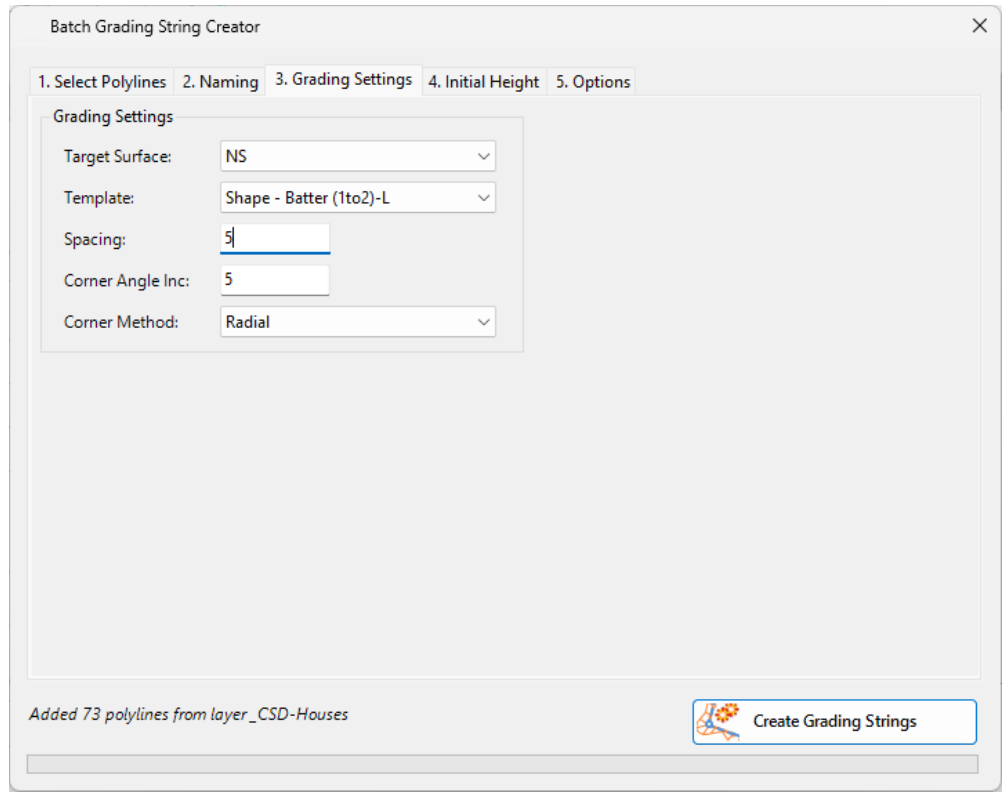
As per the current Grading String form, you then set up the base surface, template, spacings and batter slopes to apply.
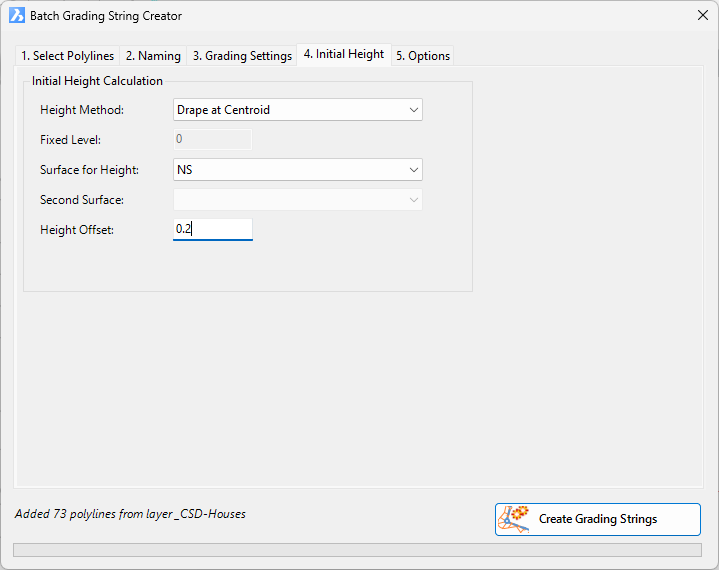
The Initial Height tab lets you determine the method for setting the initial grading elevations. As well as Fixed Level, which is the only option in Create Grading, you can set the elevation based on the surface information found for the polyline, along with an additional height change.
Lastly, set the options for surface and model creation, then click Create Gradings.

All grading strings are created! Now you can review and edit them as needed for your design.
Grading String Management
If you are making LOTS of grading strings, this will impact on rebuild speed if all the grading strings are set to dynamically update. When you edit a polyline that controls a grading string, we sweep the drawing and update all grading strings.
You can control which Grading Strings rebuild by running the Grading String Manager. The command is available from the CSD Toolspace under the Grading Strings heading.
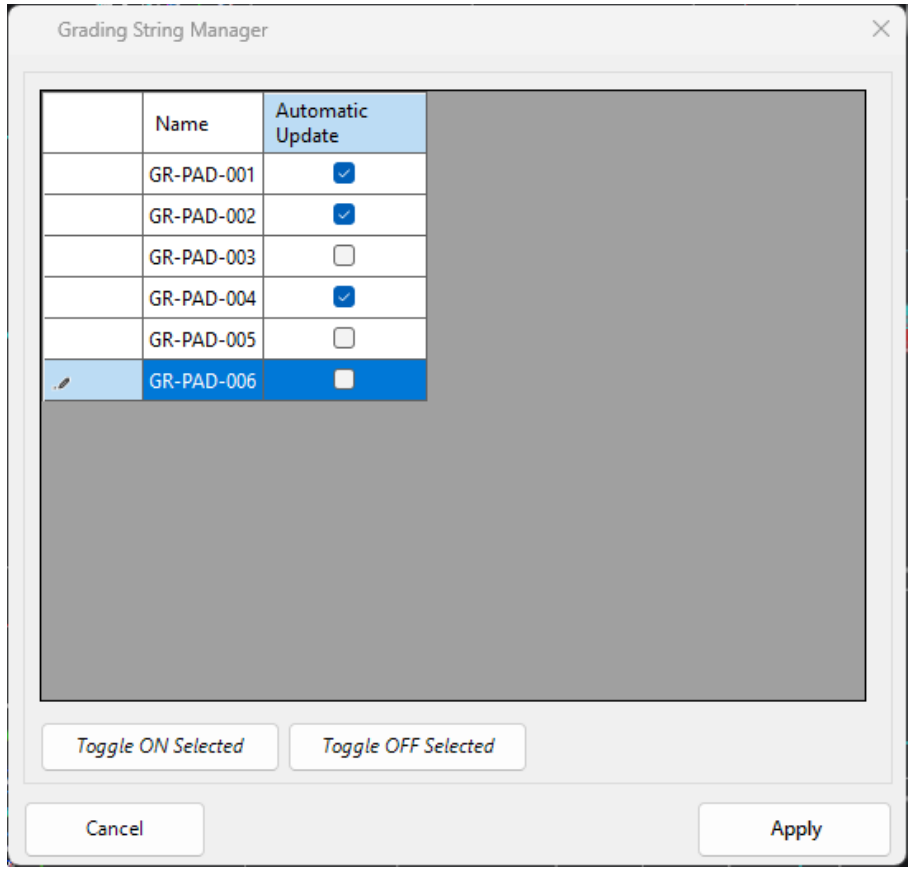
Just tick off the grading strings you don’t need to automatically recalculate. You can rebuild these gradings via the Create/Edit Grading command or by editing the vertical design in the Vertical Grading Editor. You can also update them by running a Thread.
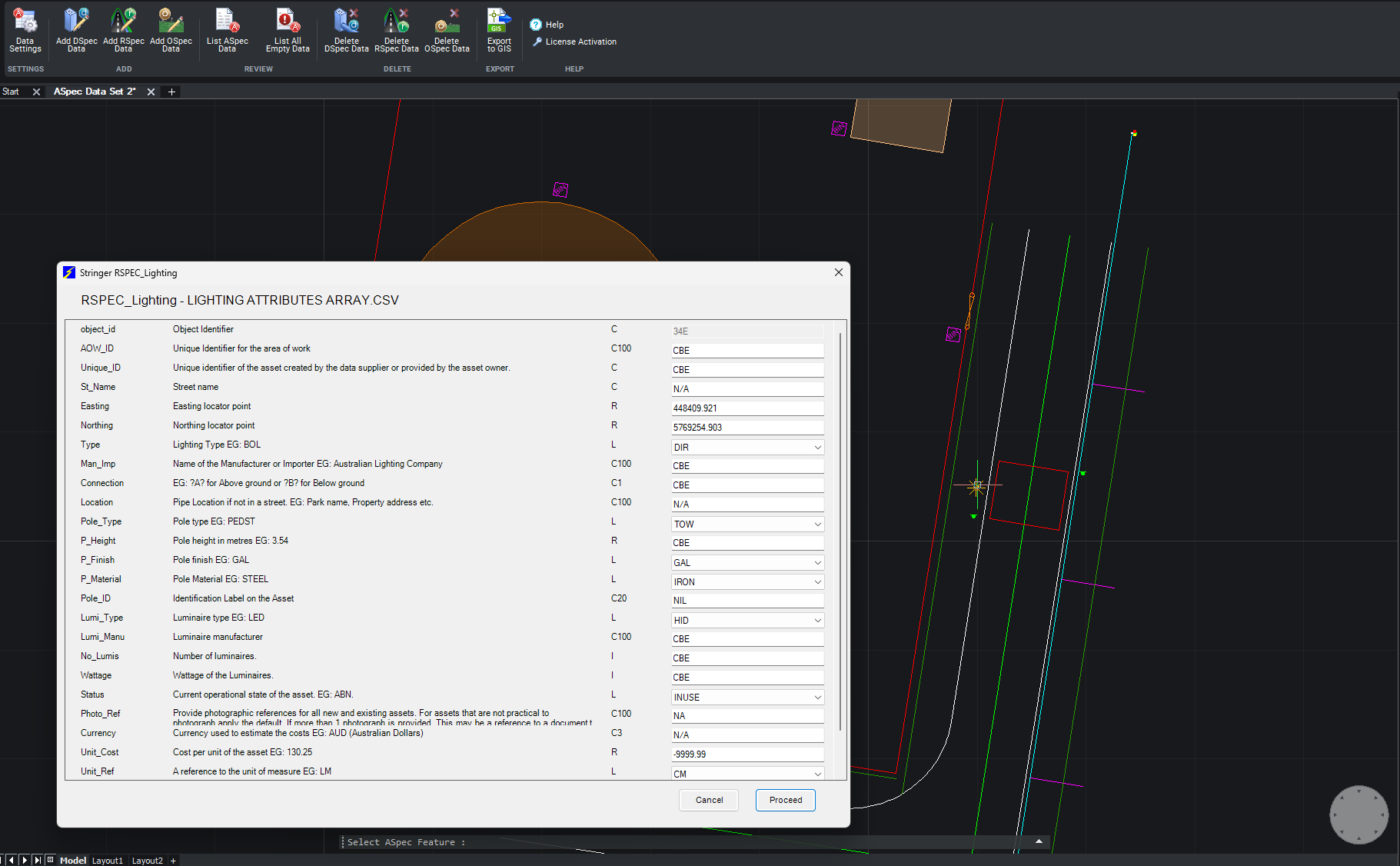
We are pleased to announce the release of Stringer ASpec V24.00. This version includes new features and improvements that aim to streamline ASpec data creation within the CAD environment. Stringer ASpec V24.00 is available on the following platforms: AutoCAD 2018 to AutoCAD 2024 BricsCAD V21 to BricsCAD V24 Civil 3D 2018 to Civil 3D 2024 […]

Civil Survey Applications recently hosted the ‘Civil Site Design: Council User Training Day’ in Parramatta, NSW. This complimentary technical training workshop was centred on civil engineering and design for local government users, with a focus on practical application of Civil Site Design features. The agenda was designed to deliver direct value to the attendees through […]

Since releasing Civil Site Design in the USA in 2007, we have experienced constant growth. A technical distributor, Logis LLC, was appointed in 2015, followed by the establishment of Civil Survey Applications LLC in 2019. Located in Florida, the team of 5 including three civil engineers, is committed to customising the software for the US […]