The newest release of Stringer Topo V26.20 has arrived. This update introduces powerful new commands focused on enhanced visualisation of your vertical design data and improvements to project consistency and setup efficiency.
Stringer Topo V26.20 is available on the following platforms:
- Civil 3D 2025 to Civil 3D 2026
- AutoCAD 2025 to AutoCAD 2026
- BricsCAD V26
Let’s have a look at the new features and improvements we’ve added between the initial release of V26 and the latest V26.20.
Accelerate Your Workflow with New Keyboard Shortcuts
To further boost efficiency, we have introduced a comprehensive set of new keyboard shortcuts across various areas of the software, including: editing strings, editing points, management, and utilities.

These shortcuts are designed to help users navigate and execute commands even quicker. For a full list of all the new shortcuts and their corresponding commands, please refer the following Stringer Keyboard Shortcuts document:
https://www.downloads.civilsurveysolutions.com/Stringer/Documentation/StringerKeyboardShortcuts.pdf
Launch Google
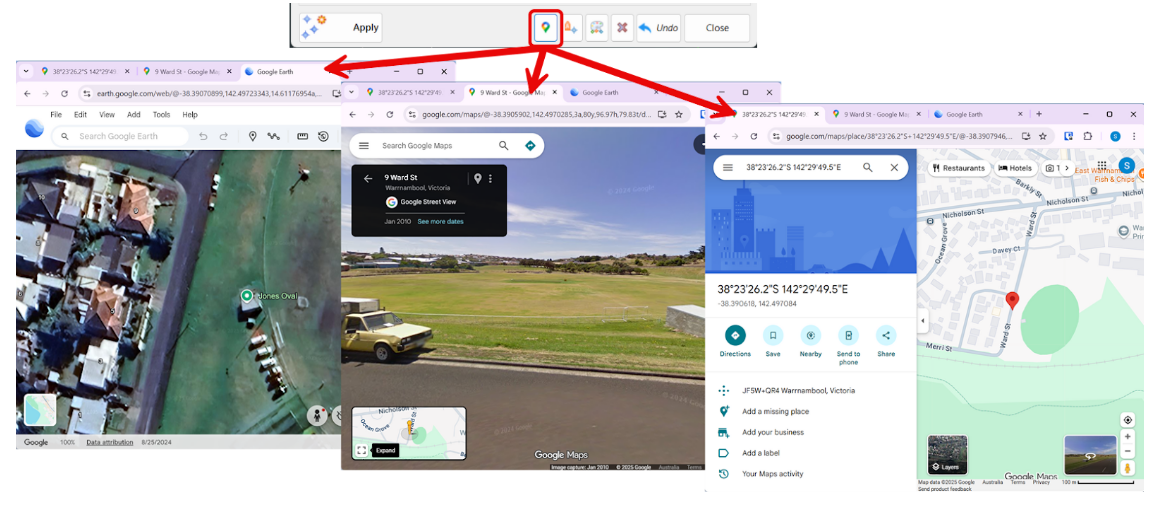
A new Launch Google button has been added to the Point Groups and Edit Point commands, providing a quick way to visualise your project data.
By selecting a COGO point and clicking this button, the software will automatically open Google Earth, Google Maps, and Google Street View to that specific point’s location. This allows for instant, real-world context and a better understanding of the site’s surroundings, directly from your design environment.
Improved Standardisation with Survey Defaults
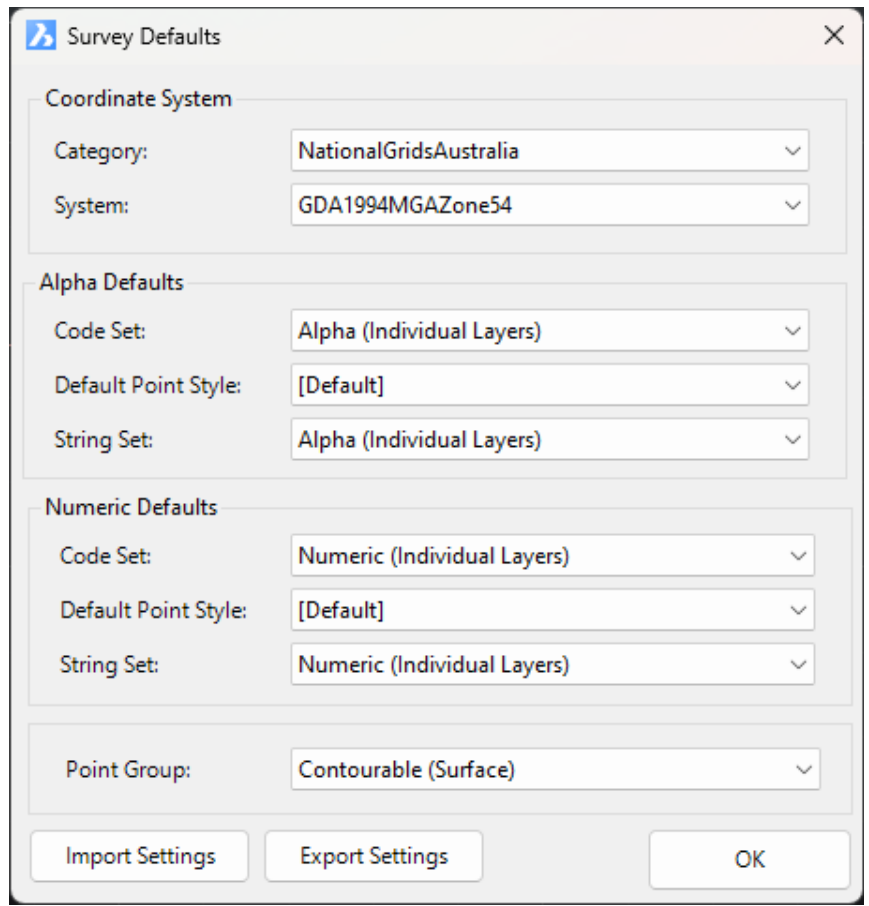
Maintaining consistency across large projects can be a time-consuming task. The new Survey Defaults Command is designed to streamline your setup process and ensure data integrity from the start.
This command centralises the configuration of essential default settings for point code strings including:
- Coordinate Systems
- Point and String Code Sets
- Point Styles
- Point Groups
These defaults are then automatically applied whenever you create new COGO points and survey strings. By configuring these settings once, you ensure that every new piece of survey data adheres to your project standards, reducing repetitive selections and the risk of errors.
Moving to a new machine or standardising Stringer settings across your entire team is now simpler, through the new Export Settings and Import Settings functionality.
Use the Export Settings command to save your Point Code Sets, Survey Line Settings, and Point Group Settings to a single, portable file. Then, use Import Settings to quickly apply that file, giving you the critical option to create a backup of your current setup before replacing it. This ensures that team-wide standards can be adopted instantly and reliably.
Enhanced Delete String (SDS)
We’ve significantly improved the Delete String command (SDS) to make editing survey strings faster and more intuitive.
Now, by simply picking any string section on screen, the command automatically deletes that specific segment. Critically, it then intelligently renumbers the subsequent points to split the original line, effectively creating two distinct survey strings from the remaining data. This enhancement streamlines complex string cleanup and editing workflows.
Create Points | Interface Improvements
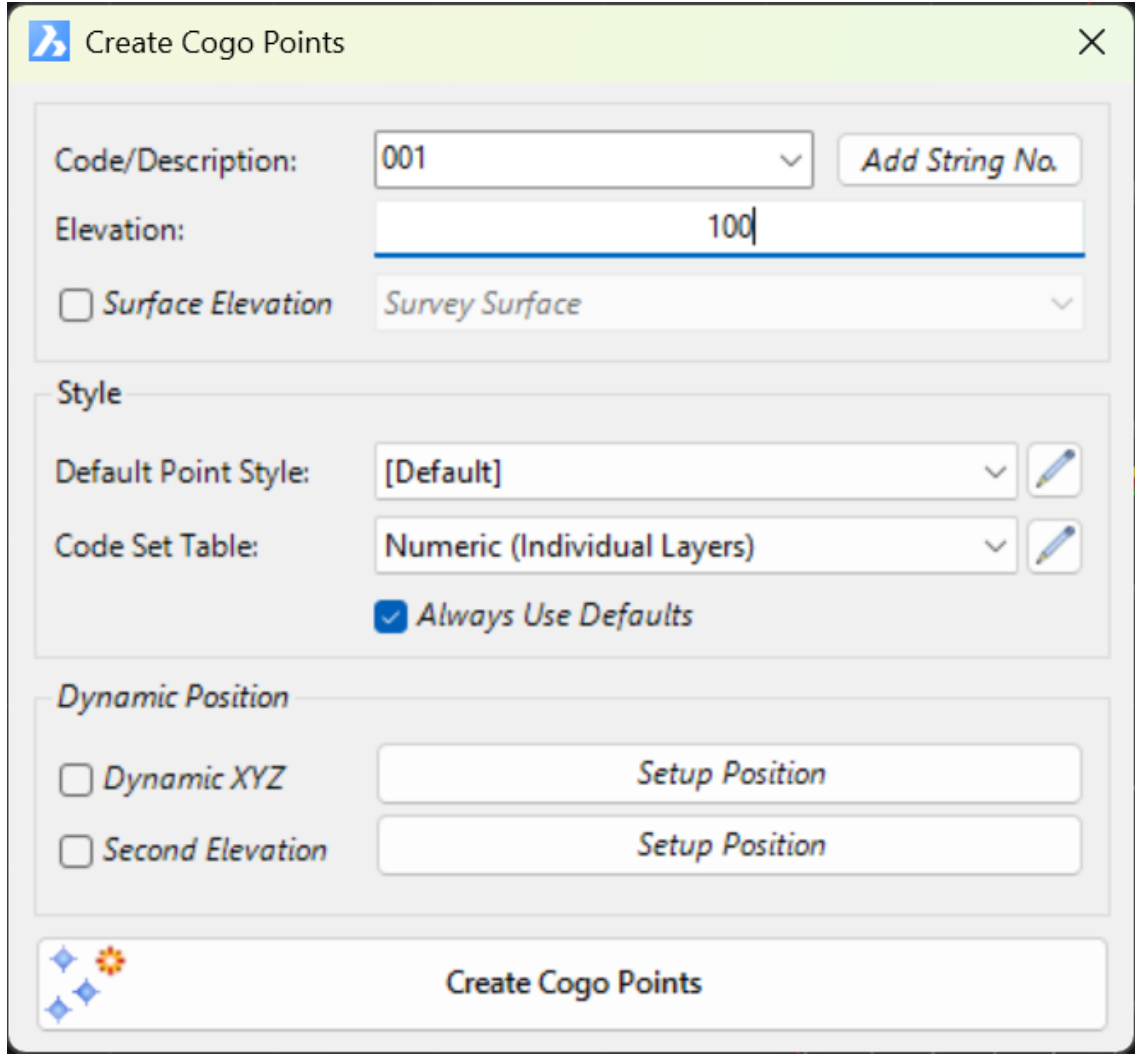
The Create Points form has been revamped and new features added to streamline the point creation process.
- Code Picklist: A new option allows users to select Codes directly from a picklist, which is populated from the selected Code Set Table. This improves accuracy and speed, but still allows you to overtype for any code and string number combination as needed.
- Append next available String Number: Automatically append the next available string number to the selected code, making it quick and easy to begin a new string of points.
- ‘Always Use Defaults’ Toggle: This new toggle gives you control over the form style defaults. You can either populate from your inputs in the Survey Defaults form or remember your last used settings.
Quick Section (QCSECT)
The new Quick Section (QCSECT) creates dynamic cross-sections along a selected polyline, displaying multiple data sources in an interactive viewer. This single tool allows you to overlay and analyse all critical components of your design:
- Surfaces
- COGO Points
- Survey Strings
This capability helps surveyors assess surface outcomes and identify issues, leading to better decision-making and verification of survey.
Combine Points
A new command to combine points has been added to the Point Groups command (Options > Combine Duplicate Points). This feature is designed to clean up your data by identifying and merging duplicate points—that is, points that share the same x, y, and z coordinates within a user-defined tolerance.
When the command is run, it combines the duplicate points by appending the Code of the second point to the Code of the first point, effectively creating a “multi-coded” point. The second point is then removed from the drawing, reducing clutter and ensuring data integrity. This process helps to streamline your survey data and eliminate redundant information.
Multi-Symbol Functionality Enhanced (AutoCAD/BricsCAD only)
The Multi-Symbol feature has been significantly improved, providing greater flexibility and automation when working with COGO points.
Previously, multi-symbols were applied only via a point group, but now we’ve improved accessibility by integrating it directly into the Point Code Set. This means you can now create multi-symbols on your COGO points based on their Point Codes, as well as via Point Groups. This enhancement saves considerable time and ensures that your symbol representations are consistent and tied directly to your survey data.
Once created, making edits to your COGO points in the drawing will automatically reposition the scaled blocks to match.

Point Property Display (AutoCAD/BricsCAD only)
The Point Property Display form has been updated to give users more control over the appearance and editability of their points.
- Decimal Place Override: You can now override the number of decimal places used to display numeric point properties, which helps to maintain a clean and consistent drawing presentation.
- Point Group Exclusion: This feature allows you to exclude all points within a selected Point Group from being edited. This is useful for protecting critical survey points or design elements from unintended display changes.

Point Property Display Enhanced
The Point Property Display form has been updated to offer users greater control over the appearance and editability of cogo points.
A brand new Decimal Places column has been added, allowing you to set the decimal place value for any attribute property (e.g., changing elevation display from three to two decimal places). You can quickly apply this setting to multiple attributes by using the Set Selected Decimal Places option.
You can also Exclude Point Groups from the display settings. For instance, you can exclude the “Trees” point group and then turn off the elevation display. All points, except those in the Tree point group, will have the elevation text removed.
Create Points by Quadrant Bearing
Probably not exciting outside of the USA, this method of creating inputs uses Quadrant Bearings instead of Azimuth to create points.