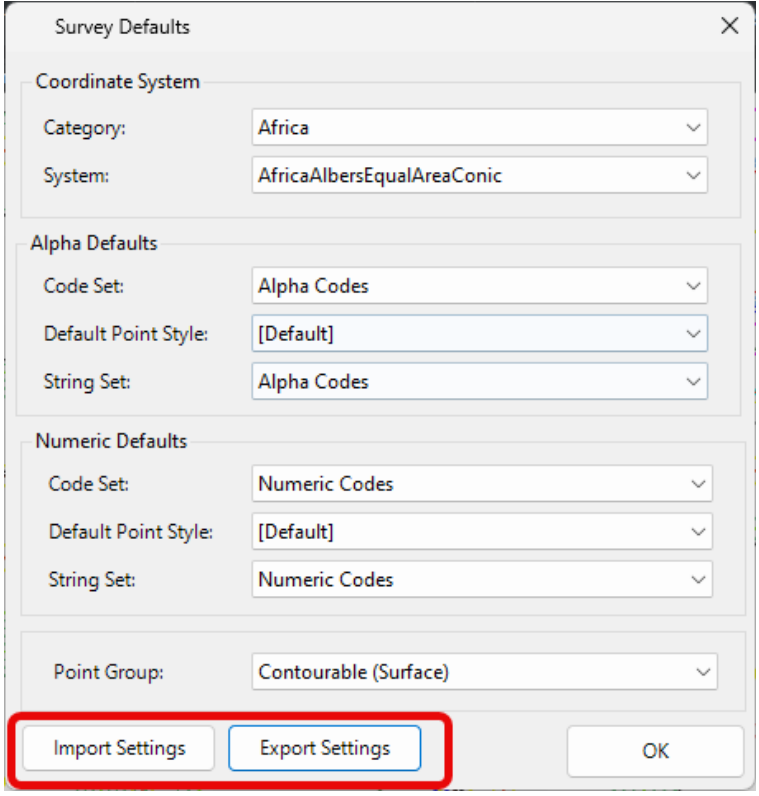
The latest update to Stringer Topo enhances the Survey Defaults form by including export and import options to share between drawings/computers in your organisation.
What does the Survey Defaults form do?
The Survey Defaults form provides you with a centralised location for key settings controls: coordinate systems, point styles, code sets, survey line settings and default point group.
Once set, this establishes your drawing setup for input and output behaviour.
The Addition of Import and Export: Quick Settings Exchange
The dedicated Import and Export tools in the Survey Defaults form provides a simple method for exchanging your key settings (Point Code Set, Survey String Settings and Point Groups) between drawings via a single file (.strx).
In the past, sharing these key settings files across the organisation meant manually copying and pasting files between computers, and there was no way to inherit these for in-progress drawings.
To share the Stringer settings, all you need to do is:
- Open a drawing containing the Sringer Settings you have established and wish to share
- Open Survey Defaults and click on Export
- Place the output file on your network or otherwise share it with a colleague in a drawing or on a different computer that doesn’t include the preferred settings
- In the receiving drawing, open the Survey Defaults form, click on Import Settings and select the created .strx file.
The point groups, point code sets and survey string settings files will be copied across to the receiving drawing, ready to be set as default and used.
Turning the Settings from Local to Global
These settings are added only to your current drawing. To set these as the defaults for all future drawings on your computer, you need to:
- Start the Point Code Sets command and click the button Set as Global
- Start the Survey String Settings command and click the button Set as Global
- Start the Point Groups command and click the button Set as Global
At times you may need to move your standalone Civil Site Design or Stringer license due to hardware failure, formatting of a workstation (PC) or moving to another PC. Here are the instructions on how to complete this process both if the license is accessible or inaccessible.
Check out the performance improvements we have introduced for all Civil 3D Corridor creators out there!
-
Check out the performance improvements we've introduced into Civil Site Design V24.20 when you're working in the Vertical Grading Editor window.
The Survey String Settings command is key to controlling how your Point Codes are used in the creation of breaklines, addition of offsets and the creation of 2D and 3D linework.